
For most students a smartphone is the one thing they never leave the house without. It is how you talk to classmates, friends and family, but it is also your camera, your web browser, your games console, your bank and often your university login. With that much personal information on one device, securing it is not optional.
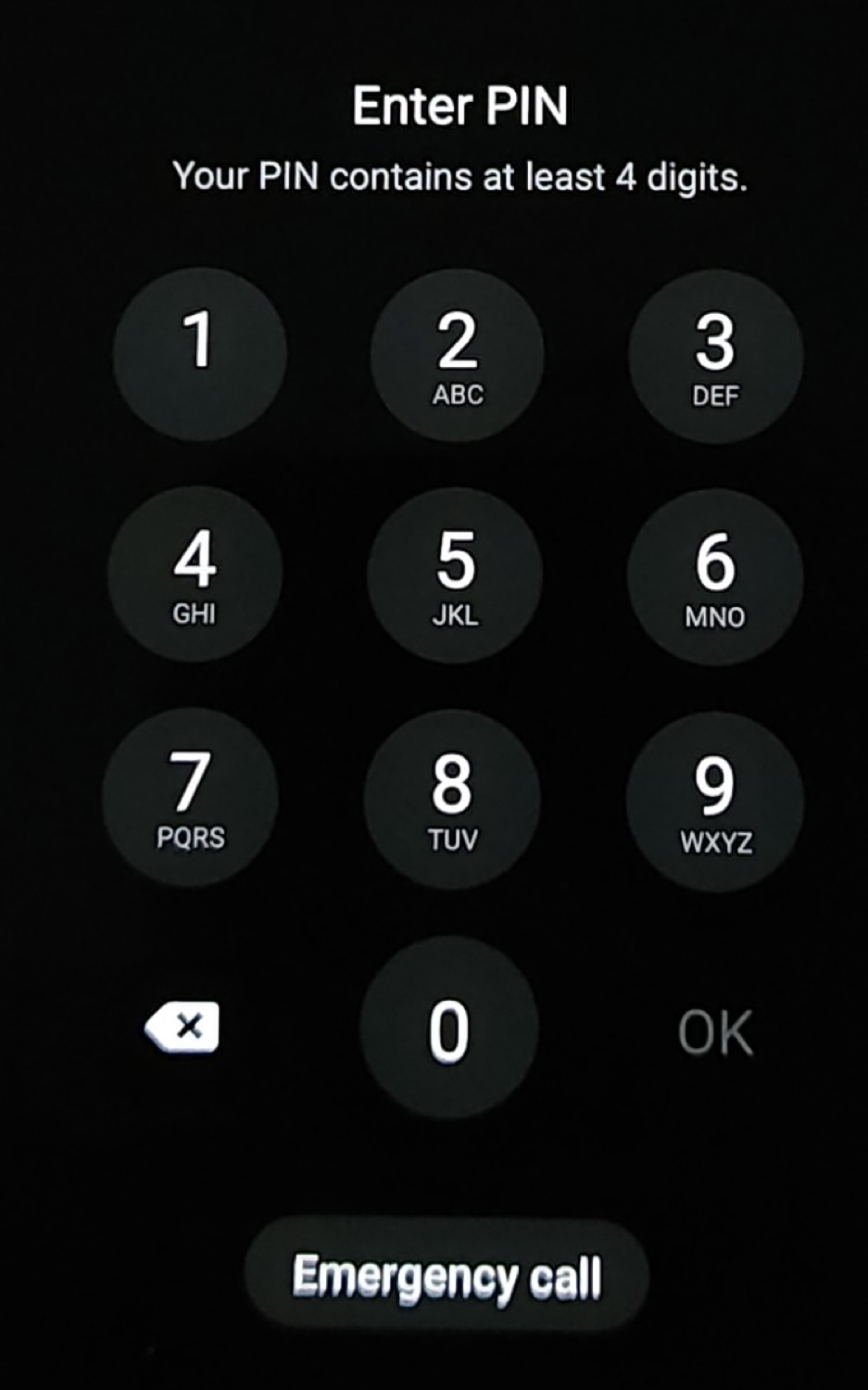
Here are five easy things every student can do to protect their phone. You never know when it might be lost or fall into the wrong hands, so it pays to take these precautions before anything happens.
1. Turn on the screen lock
Plenty of students still unlock their phone with a simple swipe. It is convenient, but it also means anyone can open your phone and browse through it. Leave it on a library table for two minutes and a stranger can read your messages, open your email or send posts from your social accounts.
The first job is to set a screen lock and make sure the phone locks itself automatically after a short time. Use a PIN or a password rather than a pattern that leaves a visible smear on the glass. It makes it much harder for anyone else to get at your data.
2. Only install apps from official stores
Students live on a budget, so when a paid app turns up for free it is tempting to grab it. The catch is that "free" copies of paid apps on third-party download sites are a favourite way to spread malware, which can steal passwords and personal details. Stick to the official stores: Google Play on Android and Apple's App Store on iPhone.
The same rule goes for anything that touches money. Banking and payment apps should only ever come from the official store or directly from the operator's own website, never from a link in a message or a forum post. If an app asks for permissions it obviously does not need, such as your contacts for a calculator, delete it.
3. Back up your data
There is always a chance your phone gets lost, stolen or dropped in a pint, so keep a backup of everything on it. Most cloud storage services offer a free tier, and the phone's own backup can copy photos, contacts and settings automatically. Dropbox, Box, Google Drive, OneDrive and iCloud all work and make it easy to sync your phone with the cloud.
4. Attach a note
This is not high-tech, but sometimes the simplest ideas work best. Put a small note with your name and an email address (not your phone number, for obvious reasons) inside the case. If an honest person finds your phone, they have a way to reach you. Modern phones also let you show emergency or contact information on the lock screen.
5. Enable remote locate and wipe
If your phone does go missing, you want to be able to find it on a map, lock it or erase it from another device. Both Android and iPhone have this built in. Take five minutes to switch it on and test it now, while you still have the phone in your hand.
Update (October 2026): Ten years on, the advice still stands, but the tools have improved. Microsoft's SkyDrive is now OneDrive; Apple's feature is called Find My and Google's is Find My Device. Add three more steps: use fingerprint or face unlock together with a strong PIN, switch on two-factor authentication for email, banking and any app that holds money, and keep your phone's software updated, because security fixes arrive through updates.
Quick checklist
- Screen lock on, auto-lock after a minute or less.
- Apps only from Google Play or the App Store.
- Automatic cloud backup switched on.
- Contact note in the case or on the lock screen.
- Remote locate and wipe tested.
- Two-factor authentication on every account that holds money.
Choosing a new laptop as well? Read our student laptop buying tips. Looking to cut your phone bill? See student budget tips for buying a phone.